Kısa ve sade cevaplar. Aradığınızı bulamazsanız bize yazın, buraya ekleyelim.
Yolculuğun tamamı bu. Aşağıdaki sorular bu adımları ayrıntılı anlatır.
DigiStratium; kendi girdiğiniz, takip ettiğiniz gruplardan gelen veya TradingView alarmlarınızın ürettiği BIST hisse sinyallerini, bilgisayarınızda ya da telefonunuzda çalışan Strat uygulaması aracılığıyla kendi aracı kurum hesabınızda otomatik emre dönüştüren bir platformdur.
Site sinyalleri üretir ve saklar; emirleri sizin cihazınızdaki Strat gönderir.
Hayır. Üyelik, sinyal girme, grup takibi ve risk ayarları tamamen tıklayarak yapılır. TradingView bağlantısı için bile hazır şablonu kopyalayıp yapıştırmanız yeterlidir.
Borsa İstanbul (BIST) hisseleri. Strat şu an Ziraat Yatırım, A1 Capital ve Vakıf Yatırım hesaplarıyla çalışır. Üçü de Windows uygulaması Strat NextGen M ve Android uygulaması Strat Mobile Next Gen M ile kullanılabilir.
Farklı bir aracı kurum istiyorsanız Soru / Talep Gönder formunda talep türü olarak Aracı Kurum Talebi'ni seçin.
Evet. Kripto için: CryptoStratium.com. TradingView alarmlarınızı ve sinyal gruplarını Binance'te otomatik alım/satım emirlerine dönüştürür; API anahtarlarınız kendi cihazınızda kalır.
CryptoStratium ayrı bir sitedir; üyeliği ve ayarları DigiStratium hesabınızdan ayrıdır.
Kripto varlıklar yüksek risk içerir; paylaşılan sinyaller yatırım tavsiyesi değildir.
Hayır. Paranız kendi aracı kurum hesabınızda kalır. Aracı kurum şifreniz ya da hesap bilgileriniz sitede saklanmaz; emirleri yalnızca sizin cihazınızda çalışan Strat gönderir. Site para transferi yapamaz.
Vakıf Yatırım'da kullanıcı adı, şifre ve SMS kodunu Strat NextGen M'nin içinde girersiniz; şifre kaydedilmez ve DigiStratium'a gönderilmez.
Yeni hesaplar 7 günlük ücretsiz deneme ile başlar, kredi kartı gerekmez. Deneme sonrasında devam etmek için bizimle iletişime geçin; üyelik süreniz ekibimiz tarafından uzatılır.
Evet. Robot bağlı olduğunda sinyaller gerçek emirlere dönüşür ve hiçbir sinyal her zaman doğru değildir. Kasa limiti tek bir sinyalin kullanabileceği tutarı sınırlar, Stop Loss zararı kesmeye yardımcı olur; ama hiçbiri kâr garantisi vermez.
Sitede paylaşılan sinyaller, senaryolar ve analiz sonuçları yatırım tavsiyesi değildir. Küçük limitlerle başlayın ve kaybetmeyi göze alamayacağınız parayla işlem yapmayın.
Evet. Strat çalışmıyorsa sinyaller yalnızca Sinyallerim listesinde, Açık Pozisyonlar'da ve K/Z Raporu'nda izlenir; gerçek emir oluşmaz. Örneğin bir hisse için AL sinyali girip birkaç gün sonra SAT girin, K/Z Raporu'ndan sonucunu görün.
Strat çalışırken girdiğiniz manuel sinyaller de gerçek emre dönüşür.
Kayıt Ol sayfasında kullanıcı adı, e-posta ve şifre girip Kullanım Şartları'nı onaylayın. Telefon numarası isteğe bağlıdır.
Önce spam / gereksiz klasörüne bakın; e-posta info@digistratium.com adresinden gelir. Birkaç dakika içinde gelmezse E-postanızı Doğrulayın sayfasındaki WhatsApp'tan Yardım Alın butonunu kullanın ya da info@digistratium.com adresine kullanıcı adınızla yazın.
E-postadaki doğrulama bağlantısına tıkladığınızda (ya da kodu girdiğinizde) hesabınız hemen aktive edilir ve giriş yapabilirsiniz. Giremiyorsanız kullanıcı adınızı ve şifrenizi kontrol edin; gerekirse Şifremi unuttum? bağlantısını kullanın.
Giriş ekranı "hesabınız henüz aktive edilmedi" diyorsa bizimle iletişime geçin.
7 gündür ve kayıt tarihinizden itibaren işler (aktivasyon tarihinden değil). Kalan gün sayınızı Profil sayfasındaki Lisans Süresi kartında görürsünüz.
Süresi dolan hesaplar pasif hâle getirilir: giriş yapılamaz, Strat sinyal alamaz ve takip ettiğiniz gruplardan çıkarılırsınız. Kendi sinyal grubunuz silinmez.
Devam etmek için bize ulaşın; uzatılan gün sayısı mevcut bitiş tarihinize eklenir.
Hesabınız yeniden aktive edildiğinde Sinyal Kodunuz yenilenir; TradingView alarmlarınızı yeni kodla güncelleyin.
Seviyeniz Profil sayfasındaki Üyelik Seviyesi kartında yazar.
Giriş yaptıktan sonra Başlangıç Sihirbazı bu adımlarda size sırayla yol gösterir; tamamladığınız adımlar otomatik işaretlenir.
Strat, sinyallerinizi alıp kendi aracı kurum hesabınızda emre dönüştüren uygulamadır. Giriş yaptıktan sonra Profil sayfasındaki Strat Uygulaması bölümünden indirirsiniz:
Her dosyanın yanında son güncelleme tarihi yazar.
Bekleyen bir emri, Günlük emirler listesinde yanındaki İptal et ile iptal edebilirsiniz; uygulama önce onay ister, sonuç Kayıtlar'a yazılır.
Şifreniz kaydedilmez, bu yüzden uygulamayı her açtığınızda yeniden giriş yaparsınız. Başka bir aracı kuruma geçtiğinizde Vakıf oturumu kapanır.
Android uygulaması Strat Mobile Next Gen M'de adımlar aynıdır; aracı kurumu Ayarlar sekmesinden seçersiniz.
Strat Merged'in yerini Strat NextGen M aldı; yeni özellikler ve Vakıf Yatırım desteği yalnızca NextGen M'dedir. Profil'den Strat NextGen M'yi indirip kurun. Lisans Kodunuz aynıdır; uygulamanın içinden DigiStratium hesabınızla giriş yapınca kendiliğinden gelir. Ayarlarınız yeni uygulamaya taşınmaz: ilk açılışta lisans sözleşmesini onaylar, aracı kurumunuzu seçip yeniden giriş yaparsınız.
Telefonda Strat Mobile Merge kullanıyorsanız Profil'den Strat Mobile Next Gen M'yi indirip kurun; eski uygulamanın üzerine güncelleme olarak kurulur, önce kaldırmanız gerekmez.
Aynı hesapla iki Strat'ı aynı anda çalıştırmayın; NextGen M'ye geçince Strat Merged'i kapatın.
Uygulama her açılışta önce digistratium sayfasını açar ve Lisans Kodunuzu yeniden okur; kod değiştiyse yenisini alır, sonra aracı kurum sayfasına geçer.
Eksik bir adım varsa üstte bir uyarı çubuğu çıkar ve sizi ilgili sayfaya götüren bir bağlantı gösterir:
Her şey tamamsa çubuk kaybolur. Android uygulamasında da aynı uyarı çubuğu vardır ve ✕ ile kapatılabilir.
Ayarlar'daki otomatik başlat seçeneği işaretliyse robot, Lisans Kodu okunup aracı kurum girişi tamamlanınca kendiliğinden başlar.
Otomatik başlatma açıkken robot girişten hemen sonra gerçek emir göndermeye başlar. Bu seçim uygulama kapanınca sıfırlanır.
Lisans Kodu, Strat'ın hangi hesaba ait olduğunu doğrulayan size özel koddur. Profil sayfasındaki Lisans Kodunuz alanında durur; Panoya Kopyala ile kopyalayıp Strat'a yapıştırırsınız. Strat NextGen M ve Strat Mobile Next Gen M'de buna gerek yoktur: uygulamanın digistratium sayfasından DigiStratium hesabınızla giriş yaptığınızda kod kendiliğinden gelir.
Lisans Kodunuzu şifre gibi saklayın, kimseyle paylaşmayın. Kod değiştirilemez; paylaşıldığını düşünüyorsanız hemen bize ulaşın.
Strat yalnızca son birkaç dakikada (yaklaşık 2 dakika) oluşan sinyalleri alır. Uygulama o sırada kapalıysa veya bağlantısı yoksa o sinyal sonradan emre dönüşmez; bu, eski bir sinyalin fiyat çoktan değişmişken işleme girmesini önler. Sinyallerin kaçmaması için Strat'ın piyasa saatlerinde açık ve bağlı olması gerekir.
Sinyallerim sayfasındaki listede bir sinyalin yanında ➔ işareti varsa Strat o sinyali almıştır. Emrin aracı kurumdaki sonucunu Strat uygulamasında görürsünüz; Strat NextGen M'de Kayıtlar sayfasında ve Bugün kartında.
Açıkken Strat, AL emrini sinyal fiyatının %1 üstünden, SAT emrini %1 altından (BIST fiyat adımına yuvarlanarak) gönderir; böylece emrin gerçekleşme ihtimali artar. Ayar Sinyal Ayarlarım → AI Module & Grup Kuralları bölümündedir ve kayıtlı üyelere açıktır. A1 Capital'de bu ayar uygulanmaz.
Kısa bir talimattır: hangi hisse, AL veya SAT, hangi fiyattan, kaç adet. Sinyal önce listenize düşer; Strat çalışıyorsa emre dönüşür. Sizin yerinize başka bir karar verilmez.
Ayrıntılı anlatım: AL/SAT sinyali rehberi.
Sinyallerim sayfasındaki Yeni Sinyal bölümünde Hisse Kodu, Komut (AL / SAT), Fiyat ve Miktar girip Yeni Sinyal Ekle'ye basın. Sinyal hemen altındaki Sinyal Listesi'nde görünür.
Sinyallerim sayfasındaki Sinyal Listesi son 14 günü (336 saat) gösterir. Grup sütununda kendi sinyalleriniz "Myself", takip ettiğiniz gruplardan gelenler grubun adıyla yazar. Take Profit, Stop Loss veya Pozisyonu Kapat ile yapılan satışlar, kapattıkları pozisyonun geldiği grubun adıyla ve kapanış etiketiyle görünür. Listede birden fazla grup varsa üstteki düğmelerle tek bir grubu süzebilirsiniz. Daha eski ve kapanmış işlemler için K/Z Raporu'nu kullanın.
Tek başına değildir. Sinyal ancak Strat çalışıyorsa ve kasa limitiniz 0'dan büyükse aracı kurum hesabınızda emre dönüşür. Strat kapalıysa sinyaller yalnızca listede ve raporlarda izlenir.
Alarm tetiklendiğinde sinyal Sinyallerim listenize düşer; Strat çalışıyorsa emre dönüşür.
Her gönderimin sonucunu TradingView alarm günlüğündeki Webhook status sütununda görebilirsiniz.
Hâlâ çözülmediyse alarm günlüğünün ekran görüntüsüyle Hata Bildir üzerinden bize yazın.
Mesajda adet yoktur; Strat Sinyal Başına Maksimum limitinizin tamamını kullanır. AL sinyallerinde, grubunuzda açıksa Take Profit / Stop Loss yüzdeleriniz otomatik uygulanır.
Sinyal Ayarlarım → Kodumu Değiştir yeni bir kod üretir ve eski kod hemen geçersiz olur. Webhook şablonları sayfada yeni kodla güncellenir; TradingView'deki alarmlarınızı da yeni şablonla güncellemeniz gerekir. Kodunuzu biriyle paylaştıysanız değiştirmeniz iyi olur.
Evet. Investing.com ve diğer platformların uyarıları da desteklenir. Hatta kendi bilgisayarınızdan gönderdiğiniz sinyaller veya webhook istekleri de kullanılabilir.
Kurulum ayrıntıları için bizimle iletişime geçin.
TradingView tarayıcısında "Güçlü Al" (Strong buy) ve "Güçlü Sat" (Strong sell) derecesi alan BIST hisselerini, Lisans Kodunuzla hesabınıza AL/SAT sinyali olarak gönderen Windows uygulamasıdır. Diğer dereceler yok sayılır. Kayıtlı üyeler kullanabilir; Profil'den indirilir.
Her hesabın, kullanıcı adıyla aynı isimde kendi sinyal grubu vardır; hesabınız aktive edildiğinde oluşturulur. Manuel ve TradingView sinyalleriniz bu gruba düşer. Grubunuzu Sinyal Ayarlarım sayfasından yönetirsiniz; başkalarının gruplarını Diğer Sinyal Grupları'nda bulursunuz.
Diğer Sinyal Grupları sayfasında katılabileceğiniz gruplar listelenir. İstek Gönder ile katılma isteği gönderin; grup sahibi onaylayınca üye olursunuz. İsteğinizi Katılım İsteğini İptal Et ile geri çekebilirsiniz. Size gelen davetleri aynı sayfada Daveti Kabul Et / Daveti Reddet ile yanıtlarsınız. İstediğiniz kadar grubu takip edebilirsiniz. DigiStratium'un kendi botları (DIGI_WEEKLY ve diğerleri) bu listede değil, DIGI Botları sayfasındadır.
Evet. Bir sinyal grubunu ya da bir DIGI botunu takip ettiğinizde AL/SAT sinyalleri hesabınıza da iletilir; robotunuz bağlıysa emirler sizin Strat uygulamanız üzerinden kendi aracı kurum hesabınızda oluşur. Sinyal başına tutarı Kasa Ayarları'nda siz belirlersiniz ve takibi istediğiniz an bırakabilirsiniz.
Ayrıntılar: Gruplar & Topluluk.
Evet, Açık Pozisyonlar sayfasındaki Pozisyonu Kapat ile. Kendi girdiğiniz manuel bir SAT sinyali, gruptan kopyalanan pozisyonu kapatmaz.
Diğer Sinyal Grupları sayfasında o grupta Ayrıl'a basın. Grupta kalıp bir süre ara vermek isterseniz Sessiz Mod'u açın: açıkken o grubun yeni alım sinyalleri listenize eklenmez ve robotunuza gönderilmez. O gruptan daha önce açılmış pozisyonlarınız, grup kapanış sinyali verdiğinde yine kapanır.
Sinyal Ayarlarım sayfasında:
Sinyal Ayarlarım'daki Diğerleri Beni Kendi Sinyal Gruplarına Davet Edebilir ayarı açıksa evet. Kapatırsanız davet listelerinde görünmezsiniz.
DIGI botları (DIGI_WEEKLY, DIGI_INTRADAY, DIGI_TREND, DIGI_TAKAS, DIGI_CLOSE, DIGI_DIP, DIGI_SNEAKY ve ileride eklenecekler) DigiStratium'un kendi algoritmik sinyal botlarıdır; Borsa İstanbul hisselerinde AL/SAT sinyali üretirler. Hepsi Sinyaller → DIGI Botları sayfasında listelenir. Diğer üyelerin sinyal grupları ve Telegram Bot entegrasyonu bunlardan ayrıdır.
DIGI Botları sayfasında botun kartındaki Takip Et'e basın ve onaylayın; onay beklemeden hemen takip etmeye başlarsınız. Botları takip etmek kayıtlı üyelere açıktır; hesabınız kayıtlı üye değilse bizimle iletişime geçin. Takip ettiğiniz botlar Diğer Sinyal Grupları sayfasındaki gruplarınız arasında da görünür.
Takibi Bırak botun yeni AL sinyallerini durdurur. O bottan açılmış pozisyonlarınız kapanmadan kalmaz: bot satış sinyali verdiğinde yine kapanır; isterseniz Açık Pozisyonlar'dan kendiniz de kapatabilirsiniz. Botu bırakmadan bir süre ara vermek isterseniz Diğer Sinyal Grupları'nda o bot için Sessiz Mod'u açın.
DIGI Botları menüsündeki Sonuçlar (K/Z) sayfasında her botun bir işlem gününde kapanan işlemleri K/Z özetiyle gösterilir: giriş yapmış üyelere son işlem günü, ziyaretçilere ise en az 24 saat önce tamamlanmış son işlem günü. Aynı sayfada ve ana sayfada botların son sinyalleri de 24 saat gecikmeli listelenir; botu takip eden üyeler sinyalleri gecikmesiz alır.
Kendi hesabınızdaki sonuçlar K/Z Raporu'nda görünür; kasa limitiniz ve kendi kapattığınız pozisyonlar nedeniyle botun özetinden farklı olabilir.
Aktif: bot son 14 günde en az bir sinyal üretti. Sinyal bekleniyor: son 14 günde sinyal yok (örneğin henüz sinyal üretmeye başlamamış yeni bir bot). İkisini de takip edebilirsiniz; bot sinyal ürettiğinde hesabınıza gelir.
Hayır. DIGI botlarının sinyalleri bilgi amaçlıdır, yatırım tavsiyesi değildir; geçmiş sonuçlar gelecekteki sonuçları göstermez. Her emir kendi hesabınızda, kendi kasa limitiniz ve risk ayarlarınızla gerçekleşir.
Kasa Ayarları'ndaki Sinyal Başına Maksimum, tek bir sinyalin robotta kullanabileceği en yüksek tutarı (fiyat × adet) belirler. Öğrenirken küçük bir değer seçin. Bu limiti aşan manuel sinyaller reddedilir; TradingView sinyallerinde Strat adedi bu limite göre hesaplar.
Evet. Kasa Ayarları'ndaki Hisse Bazlı Vault İstisnaları bölümünde hisseyi ve miktarı seçip İstisna Ekle'ye basın. İstisna, o hisse için genel limitinizin yerine geçer; daha yüksek de olabilir, daha düşük de. Her hisse için bir istisna tanımlanabilir; gerekmediğinde listeden silebilirsiniz.
Aracı kurumda zaten verilmiş emirler oradan iptal edilmelidir; Vakıf Yatırım'da bekleyen emirleri Strat NextGen M'nin Günlük emirler listesinden de iptal edebilirsiniz.
Bilgi amaçlıdır ve şu an emirleri etkilemez. Robotun emir göndermesini durdurmak için yukarıdaki yöntemleri kullanın.
Sinyal Ayarlarım → AI Module & Grup Kuralları bölümünde Take Profit ve/veya Stop Loss kutucuğunu işaretleyip yüzdeleri girin ve Güncelle'ye basın.
Ayrıntılı anlatım: Stop Loss ve Take Profit rehberi.
Açık Pozisyonlar sayfası henüz kapanmamış tüm AL sinyallerinizi, en yeniden en eskiye listeler. Tek bir pozisyon için Pozisyonu Kapat, hepsi için Tüm Açık Pozisyonları Kapat'a basın; ikisi de önce neyin kapanacağını (hisseyi ya da kaç pozisyonun hangi gruplardan kapanacağını) gösterip onayınızı ister. Pozisyonlarınız birden fazla gruptan geliyorsa listenin üstündeki düğmelerle tek bir grubu süzebilirsiniz; bir grup seçiliyken Tüm Açık Pozisyonları Kapat devre dışıdır, çünkü filtreden bağımsız olarak tüm gruplardaki pozisyonları kapatır.
Kapanmış AL/SAT çiftlerinizi yüzde kâr/zarar olarak listeler. Hisse, Zaman Aralığı (2 saatten 180 güne ya da Tümü, varsayılan 14 gün) ve Sinyal Grubu (ALL, Kendim veya takip ettiğiniz bir grup) ile filtrelenir. Her 10 satırda bir ara toplam, sonda genel toplam ve Sinyal Gruplarına Göre K/Z Özeti yer alır.
Sonuçlardaki bir hisse koduna tıklarsanız seçtiğiniz dönemin kapanış grafiğini ve değişim özetini görürsünüz.
Analiz ve Araçlar menüsündeki araçlar kayıtlı üyelere açıktır; deneme hesaplarında "Kullanıcı Seviyesi Gerekli!" uyarısı çıkar. Maliyet Hesaplayıcı herkese, giriş yapmadan da açıktır.
BIST gün sonu bülteni verileriyle. Sonuçlar gün içindeki anlık fiyatları değil, kapanış verilerini yansıtır ve yatırım tavsiyesi değildir.
Botun bulunduğu Telegram grubunda Grafik THYAO gibi "Grafik" ve hisse kodunu yazdığınızda bot, kısa bir süre içinde o hissenin TradingView grafik bağlantısını size özelden gönderir ve grubu kalabalıklaştırmamak için yazdığınız mesajı siler.
Telegram botların size ilk mesajı atmasına izin vermez; özel cevap alabilmek için botla önceden bir sohbet başlatmış olmanız gerekir.
Sinyallerinizi Telegram'da yayınlamak isterseniz destek için bizimle iletişime geçin.
Giriş sayfasındaki Şifremi unuttum? bağlantısına e-posta adresinizi yazın; e-postanıza bir şifre sıfırlama bağlantısı gönderilir. Bağlantı 1 saat geçerlidir ve bir kez kullanılır; açılan sayfada yeni şifrenizi belirleyin. Bu işlem aktif hesaplar için çalışır.
Profil → Hesap Ayarları'ndan ad, soyad ve şifrenizi değiştirebilirsiniz. E-posta, telefon veya kullanıcı adı değişikliği için bize ulaşın.
Her hesapta aynı anda tek oturum açık olabilir. Aynı hesapla başka bir tarayıcıdan veya cihazdan giriş yaparsanız önceki oturum kapanır. Strat bundan etkilenmez; o Lisans Kodu ile çalışır.
info@digistratium.com adresine kayıtlı e-postanızdan hesabınızın silinmesini talep edin. Kişisel verilerinizle ilgili ayrıntılar Gizlilik Politikası ve KVKK Aydınlatma Metni'nde, kullanım koşulları Kullanım Şartları'ndadır.
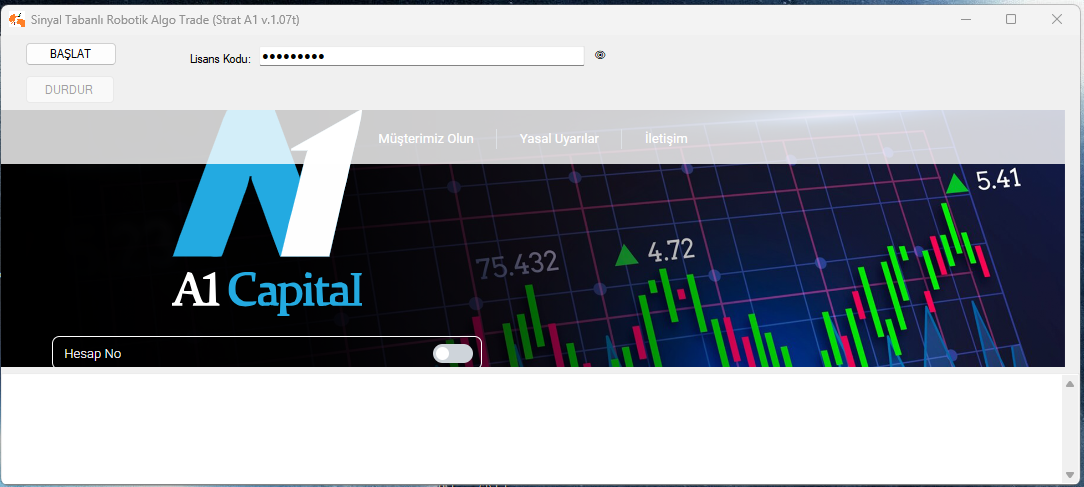
Kendi Bilgisayarınıza kurduğunuz site üzerinden sinyalleri aracı kuruma gönderen robot araçtır. Üsteki kutuya lisans kodunuzu yapıştırıp "Başlat" düğmesine basmanız yeterli.
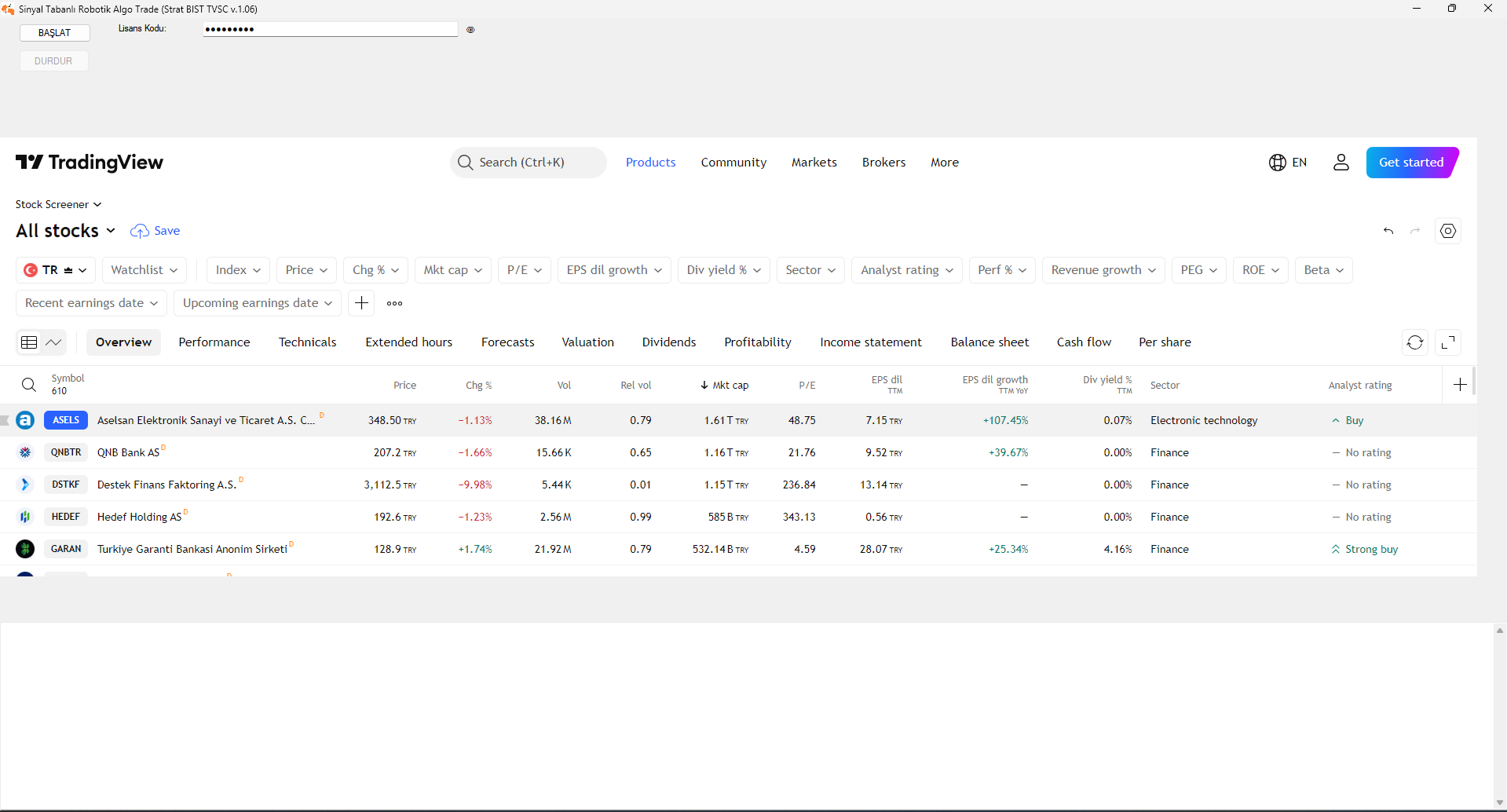
Tradeview üzerinden BIST hisse taramalarınızı otomatik AL/SAT sinyallerine çeviren robot programdır.
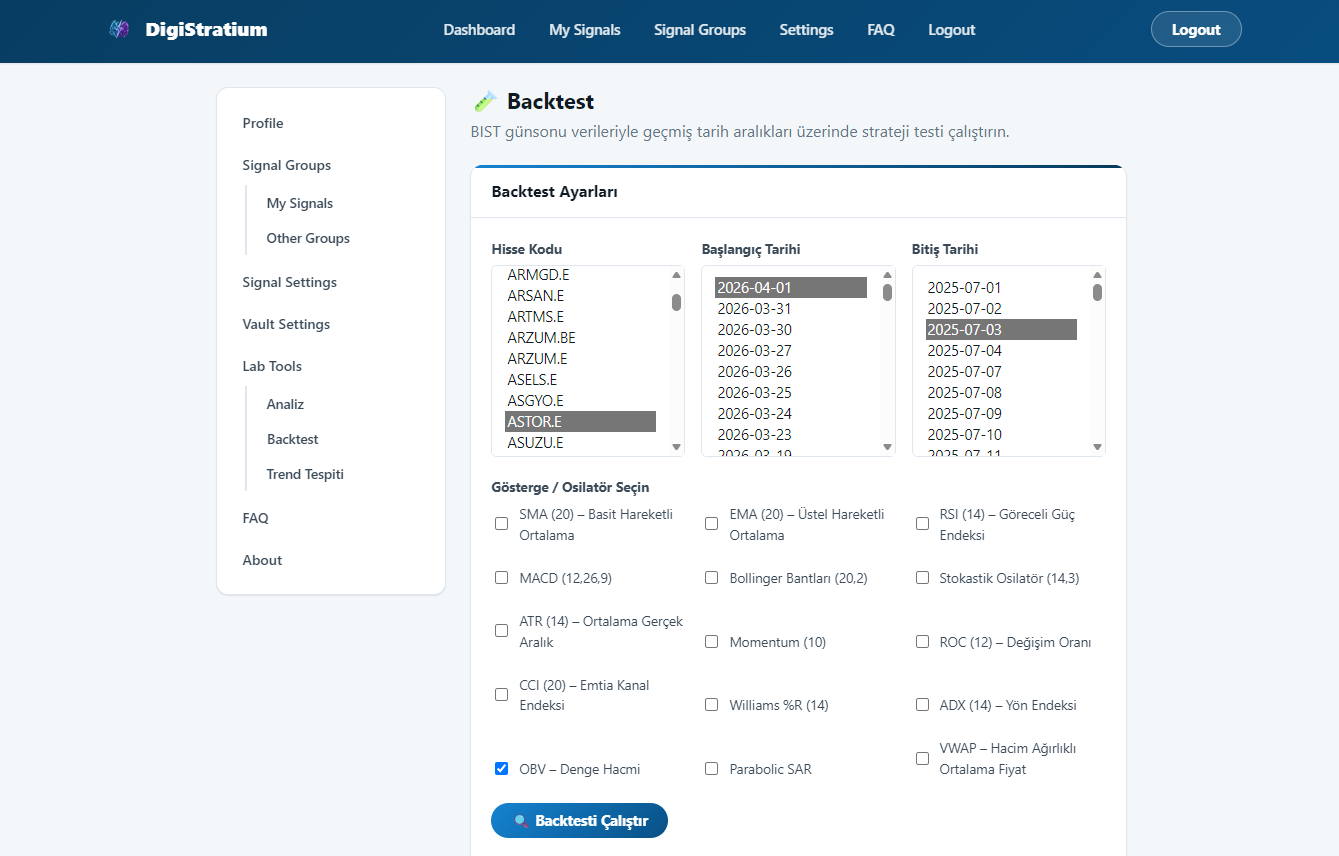
Sağ Menüden Lab Tools -> Backtest seçildikten sonra ilgili Hisse Kodu , başlangıç ve bitiş tarihleri, test edilecek strateji seçildikten sonra "Backtesti Çalıştır" düğmesine basılır.
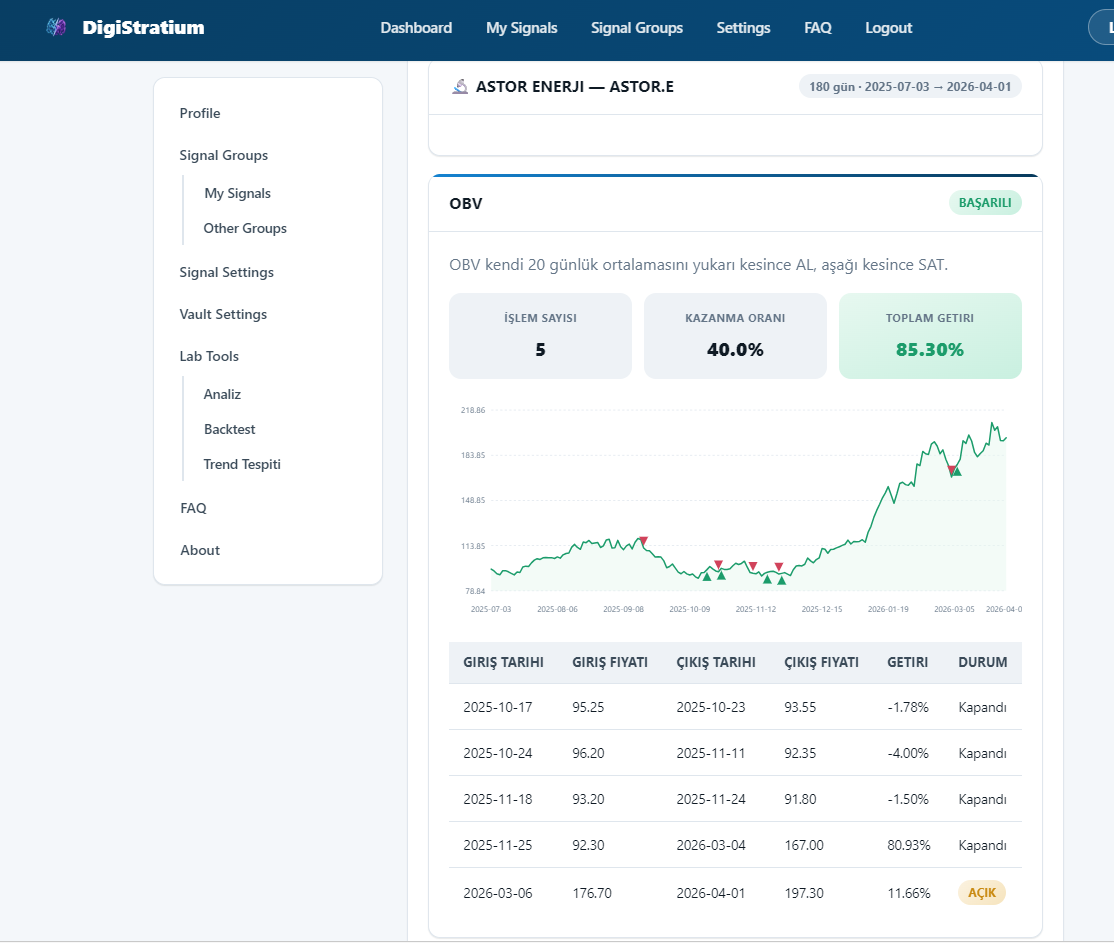
Daha sonra ekrana çıkan sonuçlara göre başarılı veya başarısız olmasına göre güncel veriler üzerinden stratejiler değerlendirilir.
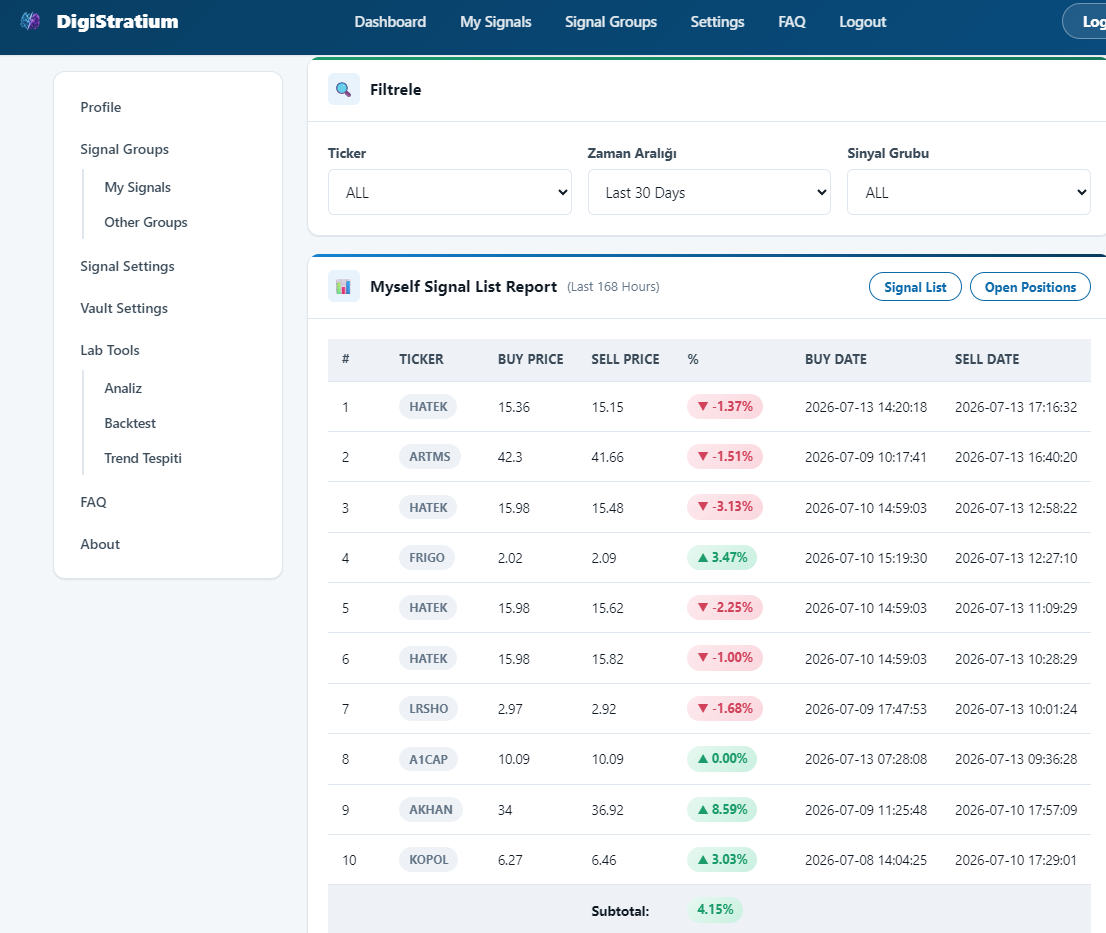
Kurduğunuz alarmlar sisteme düştükce AL/SAT emirlerinizi "Signal Settings" listesinde görebilirsiniz. Açık Pozisyonlarınızı K/Z durumunuzu Robotu kullanmadan sadece simulasyon amaçlı olarak kullanabilirsiniz
Manuel olarak eklediğiniz bir alım/satım sinyalinin fiyatı, hissenin önceki gün kapanış fiyatından belirlenen bir yüzdenin (varsayılan %11) dışına çıkarsa sinyal reddedilir. Bu kontrol, yanlışlıkla çok uzak bir fiyat girilerek gerçekleşmesi mümkün olmayan bir kâr/zarar oluşmasını engellemek içindir. Önceki kapanış verisi bulunmayan hisseler (örn. yeni işlem görenler) bu kontrolden etkilenmez.
Sinyal Ayarlarım > K/Z Raporu sayfasında, kapanmış işlemleriniz artık yalnızca toplam olarak değil, hangi sinyal grubundan geldiğine göre de (Kendim, katıldığınız diğer gruplar vb.) ayrı ayrı özetlenir. Her grup için işlem sayısı, ortalama K/Z% ve toplam K/Z% görebilirsiniz.
Analiz Araçları > Endeks Tahmini sayfası, bir sonraki çeyreklik gözden geçirmede BIST 30/100 endeksine girmesi veya endeksten çıkması olası hisseleri, işlem hacmi likiditesine göre yaklaşık olarak listeler. Bu, Borsa İstanbul'un resmi endeks yönteminin (halka açık piyasa değerini de içeren) basitleştirilmiş bir yaklaşıklamasıdır ve yatırım tavsiyesi niteliği taşımaz.
Strat NextGen M (Windows) ve Strat Mobile Next Gen M (Android), Ziraat Yatırım, A1 Capital ve Vakıf Yatırım bağlantılarını tek bir robot uygulamasında birleştiren güncel sürümlerdir; Strat Merged ve Strat Mobile Merge'ün yerini alırlar. İkisini de Profil > Strat Uygulaması bölümünden indirebilirsiniz; hangi sürümün güncellendiği kart üzerindeki tarihte belirtilir.
Evet. İletişim sayfasındaki "Soru / Talep Gönder" formunu kullanarak üye olmadan bize ulaşabilir, genel bir soru sorabilir veya kullandığınız aracı kurumun desteklenmesini talep edebilirsiniz. DigiStratium şu anda sınırlı sayıda aracı kurumu destekliyor; talep sayısı yeni entegrasyonların önceliklendirilmesine yardımcı olur.
Bu kelimeyle eşleşen bir soru yok. Daha kısa bir kelime deneyin ya da bize doğrudan sorun.
Aradığınız yanıtı burada bulamadıysanız bize doğrudan yazabilirsiniz. Üye olmanıza gerek yok -- WhatsApp veya Telegram üzerinden de ulaşabilirsiniz.
7 gün ücretsiz, kredi kartı gerekmez, paranız kendi aracı kurum hesabınızda kalır.